Get in touch
I'm always excited to take on new projects and collaborate with innovative minds.
Phone
Website
Address
Dhaka, bangladesh
I'm always excited to take on new projects and collaborate with innovative minds.
Dhaka, bangladesh
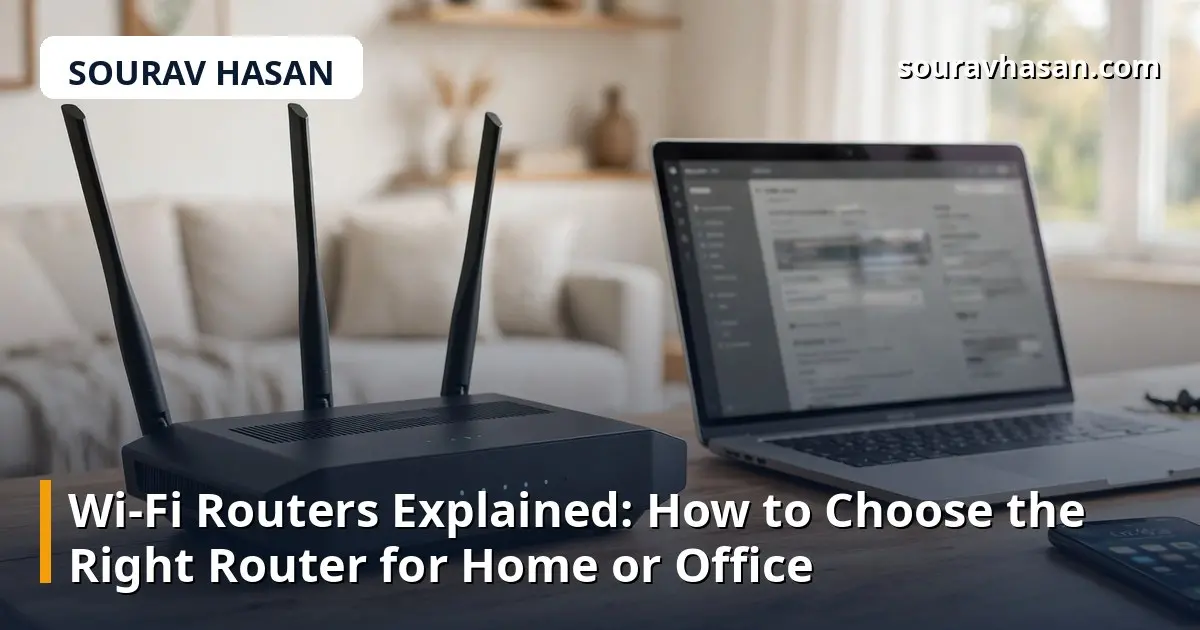
Every home and office network starts with one small box: the router. Yet when you shop for one, you face a wall of confusing terms — dual-band, Wi-Fi 6, gigabit ports, MU-MIMO — and prices that range from very cheap to surprisingly expensive. Choosing the wrong router means dead zones, slow video calls and a network that struggles the moment everyone is online at once.
This guide explains what a Wi-Fi router actually does, what the specifications mean in plain language, and how to pick the right one for your home or office, based on my experience setting up networks for small businesses and homes.
Your internet connection arrives at your home or office through a cable or fibre line. The router takes that single connection and shares it with all your devices — phones, laptops, smart TVs, cameras — over Wi-Fi and, in many cases, wired Ethernet cables. It also protects your network: it gives each device a private address, blocks unsolicited traffic from outside, and lets you control who can connect.
A modem is not the same thing. The modem connects you to your internet provider; the router distributes that connection inside your premises. Many internet providers supply a combined modem-router box, but a separate, better router is often a worthwhile upgrade.
You do not need to understand every specification, but a few matter when you are choosing.
Wi-Fi 5 (802.11ac) is the older standard and is still fine for basic use. Wi-Fi 6 (802.11ax) handles many connected devices much better, uses less power on phones and laptops, and performs better in crowded environments. If you are buying today, Wi-Fi 6 is the sensible choice; the newest standard, Wi-Fi 7, is still expensive and only worth it if your devices support it.
A dual-band router broadcasts two networks: 2.4 GHz and 5 GHz. The 2.4 GHz band reaches further and passes through walls better, but it is slower and more crowded. The 5 GHz band is faster but covers a shorter distance. Use 5 GHz near the router for video calls and streaming, and 2.4 GHz for devices further away. Tri-band routers add a second 5 GHz band, which helps in busy offices with many devices.
Routers advertise combined speeds like AC1200 or AX3000. These numbers add the maximum speed of all bands together, and real-world speeds are always lower. Treat the number as a rough guide for comparing routers, not as the speed you will actually get — your internet plan and your walls matter more.
More antennas do not automatically mean better coverage. What matters is the size of your space and the number of walls between the router and your devices. For a flat or a small office, one good router placed centrally is usually enough. For a large house or a multi-floor office, a mesh system — several small units working together — gives far better coverage than one powerful router.
Check how many wired LAN ports the router has and whether they are gigabit (1,000 Mbps) ports. A wired connection is always more stable than Wi-Fi for desktop computers, network storage and CCTV recorders, so having enough ports matters in an office.
Start with your situation, not with the most expensive model on the shelf.
A dual-band Wi-Fi 6 router is enough. Place it in the centre of the home, on a shelf rather than on the floor or inside a cabinet, and you will cover most flats comfortably.
Choose a Wi-Fi 6 router with good capacity for many devices, or a mesh system if the house has two or more floors. Count your devices honestly: phones, laptops, TVs, smart speakers and cameras add up quickly, and a router that struggles with twenty devices will frustrate everyone.
Prioritise stability and control: gigabit ports, guest-network support so customers do not join your main network, and the ability to handle many simultaneous connections. If your office runs CCTV cameras or a point-of-sale system, a wired connection for those devices is more reliable than Wi-Fi. A firewall and sensible network segmentation also matter here — see my guide on what a firewall is and why a small business network needs one.
An expensive router in a bad position performs worse than a mid-range router placed well. A few placement rules make a real difference:
A new router ships with defaults that you should change on day one. Set a strong, unique admin password for the router itself. Use WPA3 security if your router offers it, or WPA2 if it does not — never leave the network open or use the old WEP standard. Change the default Wi-Fi name and password, turn on automatic firmware updates, and set up a separate guest network for visitors. These five minutes of work protect everything else on your network.
Most routers last four to six years. Replace it sooner if it no longer receives firmware updates, cannot handle the number of devices in your home, or your internet speed has outgrown it.
Only up to the speed of your internet plan — a router cannot give you more speed than you pay for. It can, however, deliver more of that speed to your devices, especially over Wi-Fi, and handle many devices at once without slowing down.
A mesh system is a set of two or more small units that work together as one network. Your device connects to the nearest unit automatically as you move around, so there are no dead zones and no separate network names to switch between.
Wi-Fi 6 routers work fine with older devices — they simply connect using the older standard. Buying Wi-Fi 6 now means the router is ready when you upgrade your phones and laptops later.
The right router is the one that fits your space, your device count and your internet plan. A mid-range Wi-Fi 6 router, placed centrally and secured properly, covers most homes and small offices well. Spend more only when you genuinely need the coverage of a mesh system or the capacity of a business-grade device — and remember that placement and settings matter at least as much as the price you pay.
Your email address will not be published. Required fields are marked *